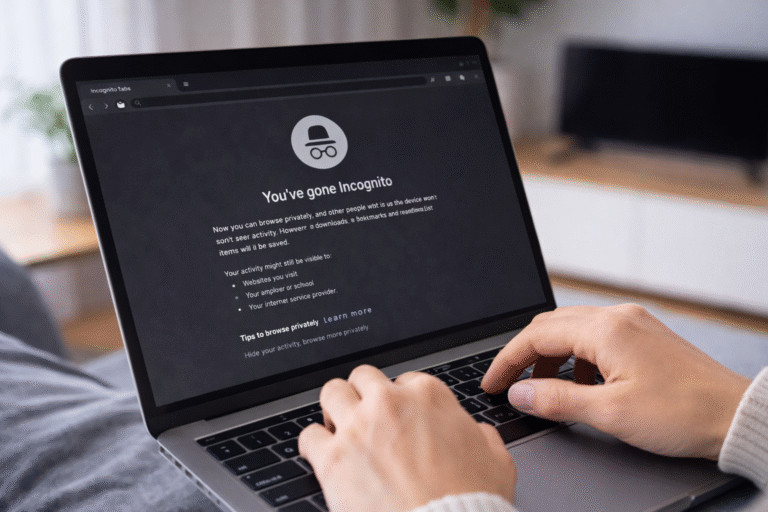

Incognito mode prevents your browser from storing browsing history, cookies, and site data locally. But it does not make you invisible online websites, ISPs, employers, and government agencies can still see your activity.
If you’ve ever used incognito mode thinking you’re completely “hidden”,so let’s break it down simply and explain what it really does and doesn’t do.
What Incognito Mode Actually Is
Incognito mode is a private browsing feature available in all major browsers like Chrome, Safari, Firefox, and Edge.
Its main purpose:
- Keep your local browsing history private
- Prevent cookies and site data from being saved
- Avoid autofill and password storage for that session
Think of it like this:
You’re browsing in a temporary sandbox that disappears once you close the window. The browser leaves no trace on your device, but your activity isn’t invisible to the internet.
What Incognito Mode Does Hide
When you browse in incognito, the browser stops storing:
- Browsing history
- Pages you visit won’t appear in your browser history after closing the session.
- Search history
- Your searches won’t appear in Google or your browser autocomplete.
- Cookies and site data
- Websites can’t store cookies permanently.
- Login sessions end when you close the window.
- Form entries & autofill
- Your typed information (like emails or passwords) isn’t saved for next time.
- Local cache of files
- Images, scripts, or temporary website files aren’t stored after the session ends.
In simple words: everything is temporary. Close the window, and it’s gone from your device.
What Incognito Mode Does Not Hide
Here’s where most misconceptions happen. Incognito mode does not make you anonymous online. Your activity is still visible to:
- Your Internet Service Provider (ISP)
- They can track every website you visit, even in incognito mode.
- Websites you visit
- Sites can see your IP address, track clicks, and collect data.
- Your employer or school (if using a work/school network)
- Network administrators can monitor your traffic.
- Government agencies (if monitoring traffic)
- They can access network logs.
- Browser extensions
- Some extensions may still track your activity if enabled in incognito mode.
In short: Incognito only hides your activity from your device, not from the broader network or the websites themselves.
How Incognito Mode Works Behind the Scenes
Incognito mode is like a temporary private workspace for your browser:
- No history storage:
- Pages you visit aren’t written to your main browser history.
- Temporary cookies:
- Websites can use cookies while you’re browsing, but they’re deleted when you close the session.
- No autofill:
- Your typed data isn’t saved for the future.
- Separate session:
- If you’re logged into a site in normal mode, you won’t be automatically logged in during incognito.
- Temporary cache:
- Any cached files exist only during that session.
Basically, your browser creates a self-destructing session. Once you close it, all local traces are gone.
Incognito Mode vs Private Browsing
Different browsers use different names, but the concept is similar:
| Browser | Feature Name | Key Function |
|---|---|---|
| Chrome | Incognito | Hides history & cookies locally |
| Safari | Private Browsing | Hides local activity |
| Firefox | Private Browsing | Adds tracker blocking |
| Edge | InPrivate | Hides local history & cookies |
Some browsers like Firefox or Safari also block trackers by default. Others, like Chrome, still allow trackers unless you use additional extensions.
Common Misconceptions About Incognito Mode
- “I’m invisible online.” ❌
- Not true. Your IP is still visible.
- “No one can track me.” ❌
- Trackers, ISPs, and websites can still track you.
- “I can bypass all restrictions.” ❌
- Incognito won’t bypass paywalls, school filters, or IP restrictions.
- “It deletes all my downloads.” ❌
- Files you download stay on your device.
Why People Use Incognito Mode
Even if it doesn’t make you invisible, it has real uses:
- Privacy on shared devices
- Prevents other users from seeing your browsing history.
- Testing websites
- Developers use it to test websites without cached files interfering.
- Multiple logins
- Allows logging into multiple accounts simultaneously.
- Avoid targeted ads temporarily
- Cookies reset when you close the session, temporarily reducing ad tracking.
- Bypass auto-login
- Useful if you want a clean session without saved credentials.
Does Incognito Mode Improve Security?
Only slightly.
It helps prevent local risks like:
- Someone using your device seeing your browsing history
- Saved passwords being accessible
- Local cache slowing down performance
It does not protect against:
- Malware
- Phishing attacks
- Network monitoring
- Browser fingerprinting
For real security, you need:
- VPNs
- Secure browsers
- Antivirus software
Incognito Mode + Cookies: How It Works
Cookies are tiny files websites use to remember you.
- Normal browsing: Cookies are saved long-term.
- Incognito mode: Cookies exist temporarily, disappear when you close the session.
This is why:
- Logging into Gmail in incognito doesn’t affect your main account.
- Ads may not follow you after you close incognito.
- Sites that need persistent login won’t remember you.
Limitations of Incognito Mode
Even though it hides your local activity, it can’t:
- Hide your IP address
- Hide your location
- Stop network administrators from seeing your traffic
- Prevent browser fingerprinting techniques
- Stop malware from tracking you
It’s privacy for your device, not invisibility on the internet.
Tips for Safer Browsing Beyond Incognito
If you want real privacy, consider:
- VPN (Virtual Private Network)
- Masks your IP, encrypts traffic
- Privacy-focused browsers
- Brave, Firefox with trackers blocked
- Secure search engines
- DuckDuckGo or Startpage
- Browser extensions
- Ad-blockers, anti-tracker extensions
Incognito mode + these tools = better privacy protection.
Incognito Mode on Mobile Devices
Mobile browsers behave the same, but with extra considerations:
- Apps can still track your activity
- System-level trackers may log usage
- Network-level monitoring still works
So, even on your phone, incognito is mostly local privacy.
Incognito Mode Myths Debunked
- “I can do illegal stuff safely.” ❌
- Your activity is still visible to authorities if tracked.
- “I won’t get tracked online.” ❌
- Ads and analytics can still identify you via IP or fingerprinting.
- “I can hide downloads automatically.” ❌
- Downloads remain on your device.
- “It protects me from malware.” ❌
- Incognito is not a security solution.
How I Personally Use Incognito Mode
I use incognito when:
- Logging into multiple email accounts at once
- Testing website functionality
- Avoiding leaving traces on shared devices
- Checking ads without cookie bias
I never assume total privacy that’s a misconception most people fall for.
Summary
Incognito mode is simple, useful, and misunderstood.
It:
- Protects your local privacy
- Clears temporary browsing data automatically
- Helps with multiple accounts or testing
But it does not make you invisible online.
ISPs, websites, employers, and networks can still track you.
The key is to understand its limits. Use it for what it’s meant for convenience and device-level privacy and combine it with other tools if you want true online anonymity.
Once you understand that, incognito stops being “magic” and starts being a practical tool for everyday browsing.
Discover more from PratsDigital
Subscribe to get the latest posts sent to your email.